How to Make a QR Code in Canva (and the Free Tool for When You Outgrow It)
Canva's QR code generator is free and lives right inside your design. It's also static-only, locked to your Canva account, and blind to who scans it. Here's how to use it — and exactly when you'll need something dynamic.
Canva's QR code generator is genuinely fine for what it is: a free, static QR you can drop into a design without leaving the editor. It stops being fine the moment you need to change where the code points after it's printed, or find out whether anyone scanned it. Canva does neither. For a static code inside a poster you're designing today, use Canva. For a code that has to survive a campaign, generate it free at QRBliss (15 dynamic codes, no sign-up, no watermark) and paste the image into your Canva design.
Static, inside a design? Canva. Editable after it's printed? Not Canva.
I design a lot in Canva. So does most of the planet — last I checked it's somewhere north of 200 million people, which is more than the population of every country except four. If you've made a birthday invite, a real estate flyer, or a "PLEASE DO NOT MICROWAVE FISH" sign for the office kitchen, you've probably used it.
So when you need a QR code on that design, the obvious move is to reach for Canva's built-in generator. It's right there. No new tab, no new account. And for a lot of jobs, that's the correct call.
But "it's right there" and "it's the right tool" aren't the same sentence. [My son would call that "a Dad distinction." He's not wrong.] Let me show you how to use Canva's QR generator, then exactly where it taps out.
How to make a QR code in Canva (the 60-second version)
 Photo: ready made on Pexels
Canva's QR generator is an app inside the editor, not a separate product. Here's the path:
1/ Open or create a design. Any size — flyer, Instagram post, business card.
2/ Click "Apps" in the left sidebar, then search "QR Code." It's a first-party Canva app, so it's free and already approved.
3/ Paste your URL into the app's field. Canva generates the code live.
4/ Tweak the two things it lets you tweak: foreground color and background color. That's the styling menu. All of it.
5/ Click "Generate," drag the code onto your canvas, resize, position, done.
The code is now part of your design. When you export the design as PNG, PDF, or print file, the QR rides along at whatever resolution your export uses.
That's the whole flow, and credit where it's due — it's clean. No watermark on the code itself, no upsell mid-flow, no email gate. For a one-off static code inside a design you're already building, Canva removes friction better than almost anything.
Where Canva's QR generator quietly stops
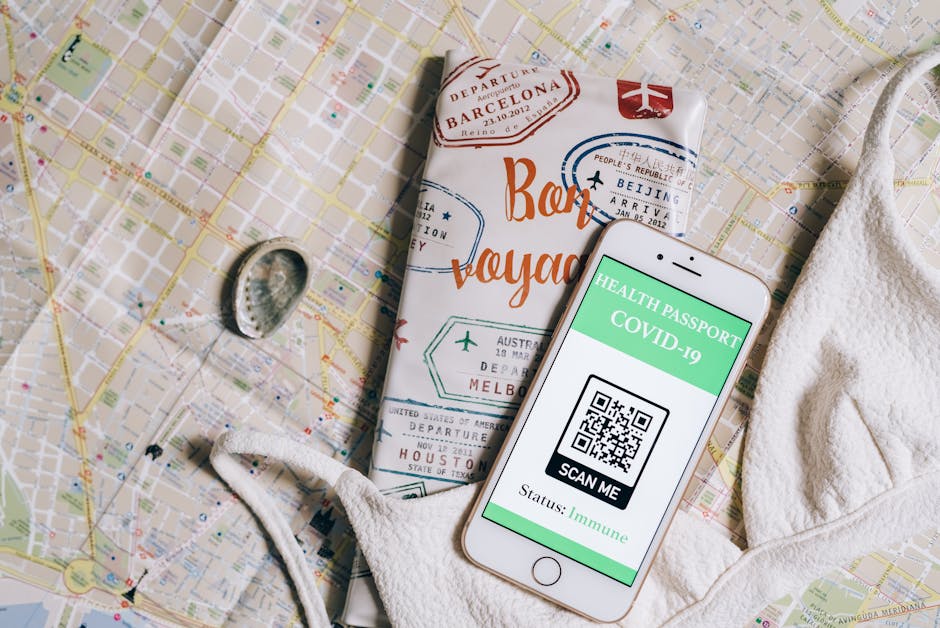 Photo: Leeloo The First on Pexels
Here's the part the tutorials skip, because the tutorials are written by people who made one code for one poster and never looked back.
The code is static. Forever. Canva encodes your URL directly into the pattern. There is no QRBliss-style redirect layer in between. So when the URL changes — the menu moves, the campaign landing page gets renamed, the Linktree dies — the printed code points at a 404 and you reprint everything. Static is forever, and forever is a long time when your URL isn't.
Zero analytics. Canva has no idea if your code was scanned 4 times or 4,000. There's no scan count, no device breakdown, no "huh, 80% of these are iPhones at lunchtime." You printed it, you released it, you're flying blind.
Styling is two color pickers. Foreground, background. No logo embed, no brand-matched palette, no eye-shape control, no gradient. If your brand is anything past "we have a blue," the code won't look like it belongs to you.
It's locked to Canva. The code lives inside your design. Want the raw QR as a standalone SVG to hand to a print shop or drop into a non-Canva layout? You're screenshotting or exporting the whole design and cropping. Not ideal at billboard resolution.
None of these are bugs. Canva is a design tool that also makes QR codes, the way a Swiss Army knife also has scissors. The scissors work. You still don't run a barbershop with them.
Old way (Canva-only) vs. new way (Canva + a real QR layer)
Old way — QR lives and dies inside Canva:
→ URL changes → reprint everything → No scan data → no idea if it worked → Two-color styling → code looks generic → Code trapped in the design → no clean export for print shops
New way — design in Canva, generate the code somewhere that does the QR job:
- Generate a dynamic code free at QRBliss — no sign-up to make your first one.
- Upload your logo and let AI Brand Sync pull a brand-accurate, contrast-checked palette in under two seconds.
- Download it as SVG (vector, infinite resolution) or PNG.
- Drag that file into your Canva design exactly like you would any image.
- When the destination changes later, edit the redirect — the printed code keeps working.
Same Canva design. The difference is the code in it can be edited after it ships, and tells you who scanned it. You lose nothing in the design workflow and gain the two things Canva's generator structurally can't give you.
Canva vs. QRBliss, side by side
| Canva QR app | QRBliss | |
|---|---|---|
| Cost | Free | Free |
| Sign-up to generate | Canva account required | No account to generate + download |
| Static codes | Yes | Yes |
| Dynamic / editable codes | No | 15 free |
| Edit destination after printing | No | Yes |
| Scan analytics | None | Country, device, scan counts (free, 30 days) |
| Logo embed | No | Yes — auto-palette from logo |
| Styling | 2 color pickers | Colors, eyes, logo, frame, gradient |
| Vector (SVG) export | Via full-design export | Direct SVG / PNG / PDF |
| Watermark | None | None |
The honest read: Canva wins on "it's already open and I'm already designing." QRBliss wins on every axis that matters after the design leaves your screen.
So which do you actually use?
Use Canva's generator when all three of these are true: the code is static (a URL that will never change), you don't care who scans it, and it's living inside a Canva design you're exporting anyway. A QR linking to your homepage on a conference banner? Fine. Canva it.
Use QRBliss when any one of these is true: you might need to change the destination later, you want to know if it worked, or you want it to actually look like your brand. Then paste the downloaded image into Canva and design around it. Best of both: Canva's layout tools, a QR code that earns its place.
📌 What changed about QR codes between 2024 and 2026: "make a QR code" stopped meaning "encode a URL into a square" and started meaning "deploy a code you can manage." Static generators like Canva's didn't get worse. The expectations around them got higher. Free dynamic codes — editable destinations, scan analytics, brand-true styling, no sign-up — went from a premium upsell to the table stakes a 2026 reader is filtering for.
If you want the broader landscape, here's our tested ranking of the 7 best free QR code generators across static, dynamic, and no-sign-up. Canva isn't on it, and now you know why.
FAQ
Where is the QR code generator in Canva?
Open any design, click Apps in the left sidebar, and search "QR Code." It's a free first-party app — paste your URL, set the two colors, click Generate, and drag the code onto your canvas. There's no separate tool; it lives inside the editor.
Is the Canva QR code generator free?
Yes — a free, first-party app with no watermark and no email gate. The catch isn't price: the code is static (no editing the destination after print) and there are no scan analytics.
Can I make a dynamic QR code in Canva?
No. Canva only makes static codes — the URL is baked into the pattern. For a dynamic, editable code with scan data, generate one at QRBliss and paste the image into your Canva design.
Why isn't my Canva QR code scanning?
Usually it's printed too small (keep it ≥ 2 × 2 cm), the colors are too low-contrast (use dark-on-light), or the export was low-resolution. Bump the size, raise the contrast, and export at print quality — more in our QR code design guide.
Can I add a logo to a Canva QR code?
Not in the QR app — it's two color pickers, no logo embed. Generate a logo'd, contrast-checked code with AI Brand Sync and place it in your design.
Read 📖 → Generate (free) → Paste into Canva ♻️
Frequently asked questions
Where is the QR code generator in Canva?
Is the Canva QR code generator free?
Can I make a dynamic QR code in Canva?
Why isn't my Canva QR code scanning?
Can I add a logo to a Canva QR code?
Create your first QR code.
Free tier. No signup required to start. Dynamic codes included.
Make a QR →