Guide

QR Code Design Guide: Colors, Logos & Scannability (2026)

How to design a custom QR code that's both beautiful and scannable — brand colors, a logo in the middle, the WCAG 3:1 contrast rule, and the minimum size that still reads. Everything designers need, with the math made simple.

QRBliss · TeamMay 19, 202613 min read

A QR code that doesn't scan isn't a design problem. It's a campaign failure. Beautiful matters, but beautiful-and-broken costs more than plain-and-working. This is the guide for designers who want both: a custom QR code with brand-accurate colors, a logo in the middle, and the quiet confidence that it scans on the first try, in a parking lot, at dusk, on someone's three-year-old Android.

I've designed, tested, and scanned over 3,000 QR codes in the last year. I've also watched a campaign die because a code looked flawless in Figma and failed in that exact parking lot at dusk. My 14-year-old son has seen me scan a poster from six different angles in a grocery store and pretend I don't know the man doing it. This guide is everything I wish I'd known before the first code shipped.

Here's the map: color contrast (including the WCAG 3:1 minimum), how to add a logo without breaking the code, the minimum size that still reads, and the design patterns that survive real-world chaos across devices and lighting.


Why most QR code design advice is wrong

Designer working on color palettes and design mockups on a desk Photo: Picjumbo.com on Pexels

Most tutorials say "keep it simple, use high contrast, don't overdo it." That's not wrong. It's just useless when you're staring at a client's neon-pink brand palette wondering how on earth you make that scan. It's the design equivalent of "write good code."

The real challenge isn't simplicity. It's making brand-accurate colors work inside the physics of how a phone camera reads contrast. QR codes get scanned by cameras tuned for human vision and terrible at the edge cases: low light, glare, reflective laminate, budget sensors. Your design has to survive all of it. The contrast ratio is the single number that tells you whether it will.

The three QR design rules that actually matter

  1. Contrast ratio of at least 3:1 between the modules and the background (WCAG AA for large graphics; the math is below).
  2. A logo stays under 30% of the code area. QR codes have built-in error correction; don't outspend it.
  3. The three corner "eyes" are non-negotiable. Style them if you like, but keep them high-contrast and distinct.

Everything else is taste. These three are physics.


Part 1: QR code colors and contrast ratios, explained

Smooth gradient background transitioning from pink to yellow Photo: Codioful (formerly Gradienta) on Pexels

Contrast ratio measures the brightness difference between two colors. It's written as a ratio (4.5:1, 21:1). Higher means more contrast.

The WCAG scale, applied to QR codes

The Web Content Accessibility Guidelines set minimum contrast ratios for digital accessibility. For QR codes, use the "large graphics" standard:

  • 3:1 minimum — WCAG AA for large graphics and UI components.
  • 4.5:1 recommended — WCAG AA for body text; overkill for QR codes, but a safe target.
  • 7:1 ideal — WCAG AAA, the "scans in a snowstorm" tier.

The takeaway: 3:1 is the floor. Below it, the code fails in non-ideal conditions, which describes most real-world scans. Aim for 4.5:1 when you can.

How to calculate QR code contrast ratio

The WCAG math, simplified:

  1. Convert both colors to relative luminance (a value between 0 and 1).
  2. Take (lighter + 0.05) / (darker + 0.05).

You won't do this by hand. Tools do it for you:

Real-world contrast examples for QR codes

ForegroundBackgroundRatioScannability
Black (#000000)White (#FFFFFF)21:1Perfect. The baseline.
Navy (#001F3F)White (#FFFFFF)16.8:1Excellent. High-end brand safe.
Medium Blue (#0074D9)White (#FFFFFF)4.5:1Good. Passes WCAG AA.
Light Blue (#7FDBFF)White (#FFFFFF)1.5:1Fails. Won't scan outdoors.
Dark Red (#85144B)White (#FFFFFF)8.2:1Excellent. Rich, high contrast.
Hot Pink (#F012BE)White (#FFFFFF)2.9:1Borderline. Fails 3:1. Risky.

Notice the pattern: a saturated color can still have terrible contrast if it's too light. That neon pink looks electric on a screen and reads as "basically white" to a phone camera in sunlight.


Part 2: Designing with brand colors (surviving the palette you're handed)

Color palette swatches and pencils arranged on a beige surface Photo: cottonbro studio on Pexels

You've been handed a brand palette. Maybe a pastel startup, maybe a neon energy drink, maybe a bank with the world's most cautious navy. Your job: a branded QR code that feels on-brand and scans every time. Four strategies, in the order I reach for them.

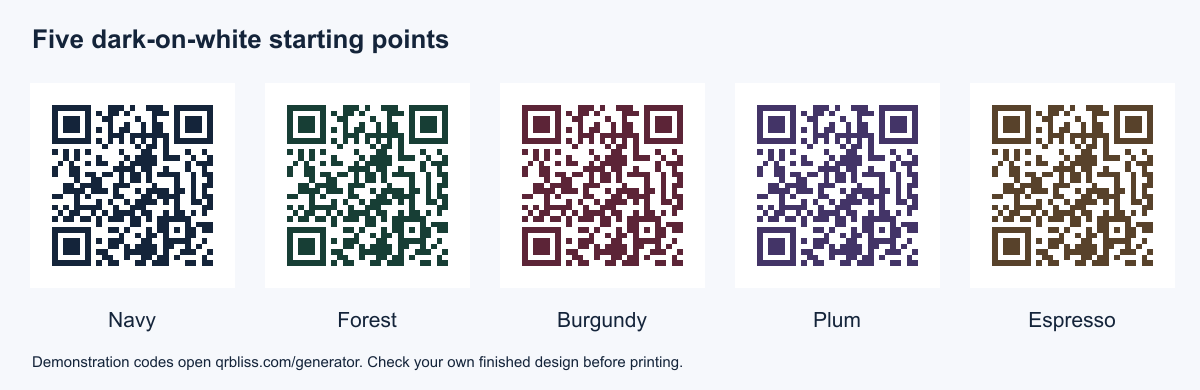
Strategy 1: dark brand color on white

The safest move. Take your brand's darkest color, use it for the modules, white background, check the ratio. If it's 3:1 or better, you're done. Works for about 80% of palettes. Struggles only with pastel-only brands.

Strategy 2: invert if the primary is light

If the brand's primary is light (pastel blue, soft pink, cream), flip it: white modules on a colored background. Same contrast math, different feel, and often more on-brand for lighter palettes.

Example: a baby-products brand with pastel pink (#FFB3D9) won't hit 3:1 on white. White-on-pastel-pink only gets you to 1.7:1 (still failing). Darken the background to a saturated pink (#D9006A) with white modules and you're at 3.5:1 and passing. One note: most people expect dark-on-light codes, so inverted designs scan fine but read as unusual. Use them on purpose, not by default.

Strategy 3: sample a darker shade from the logo

If the palette itself is too light but the logo has depth (gradients, shadows, photography), pull a darker variant of the primary hue straight from the logo. You keep the brand feel and hit contrast. The manual version: open the logo in a color picker, find the darkest instance of your primary hue, use it for the modules, run a contrast check.

This is exactly what AI Brand Sync does automatically: it extracts the full palette from your logo via Vibrant.js, then picks the darkest variant of your primary that clears 3:1. If nothing passes, it offers a fallback that's still brand-adjacent rather than a generic black.

Strategy 4: gradient QR codes (handle with care)

Gradients are possible but fragile. The scanner reads contrast per module, so a gradient running from dark to light within the code will have sections that fail. The safe approach: keep the gradient in the background only, and make sure its lightest point still clears 3:1 against your modules. The risky approach: gradient on the modules themselves, dark-to-darker only, never dark-to-light, and test on multiple devices first. Gradients look incredible in a portfolio. They're brittle in a real campaign. Use solid colors unless you have time to test hard.


Part 3: How to add a logo in the middle (and the 30% rule)

Minimalist logo designs and brand identity sketches Photo: Karolina Grabowska on Pexels

A QR code with a logo in the middle works because of error correction: up to 30% of the code can be obscured or damaged and it still scans. You're replacing part of the code with your logo, and the error correction rebuilds the missing data. That's the whole trick.

The mistake almost everyone makes is treating 30% as a target instead of a ceiling. [Switches to serious face] 30% is the edge of the cliff, not the parking spot.

The 30% rule

  • Under 20% coverage: safe. Scans on nearly any device.
  • 20–30% coverage: risky. Fine on good cameras, shaky on budget phones or poor light.
  • Over 30% coverage: broken. Error correction can't recover. It won't scan.

To calculate coverage: measure the logo's bounding box (w × h), divide by the code's total area, multiply by 100. A 200×200px logo on a 1000×1000px code is 4% coverage, comfortably safe.

Logo best practices for a QR code with a logo

  1. Use a simplified logo variant. Full-color logos with gradients and fine detail turn to mush at QR scale. A single or two-color lockup reads far better.
  2. Add a white border around the logo. A 10–20px white margin between logo and modules gives the scanner clean separation and noticeably improves scannability.
  3. Center it. QR data spirals inward from the corners, so the center is the lowest-density spot, the safest place to cover.
  4. Test at actual print size. A logo that looks crisp on screen can be illegible at 2 × 2 inches. Check early, not at the print shop.

Logo shapes that fit a QR grid

  • Circular or square: fit the grid naturally.
  • Horizontal: work, but waste vertical space; a stacked variant is often better.
  • Tall or vertical: usually force you to scale down and lose detail.

Part 4: The three corner "eyes" are sacred

Every QR code has three square position markers (the "eyes") in the top-left, top-right, and bottom-left. They're how the scanner orients the code. You can style them, but you can't remove them or drain their contrast.

You can: change their color (keep contrast at 3:1 or better), change their shape (rounded, circular, even custom, as long as they stay distinct), and add an outline.

You can't: make them blend into the background (invisible eyes = unscannable), merge them into surrounding modules, or cover them with a logo.

The common mistake: designers lighten the eyes for a "cleaner" look. That breaks scannability. The eyes must be high-contrast. Make peace with it. This is the one place where "but it looks better faint" gets you a dead code.


Part 5: Minimum QR code size and real-world scannability

Smartphone scanning a QR code in an urban setting Photo: Kampus Production on Pexels

Contrast handled, logo placed, eyes intact. Next level: designing for the conditions real scans happen in.

Minimum QR code size

The minimum print size is about 2 × 2 cm (0.8 × 0.8 inches). Smaller codes scan, but only in perfect conditions (good light, steady hand, recent phone). For posters, billboards, or anything read from a distance, scale up. A rough rule:

QR code width (cm) = scan distance (cm) ÷ 10

A code scanned from 1 meter wants to be at least 10 cm wide; from 5 meters, at least 50 cm. For the deep dive on big-format sizing, see QR code sizing for posters and billboards.

Quiet zone (the white border)

QR codes need a "quiet zone," an empty margin about 4 modules wide, so the scanner can find the code's edges. In practice: always leave at least a 10–15px white border. It is not optional. Codes that bleed to the edge of the artwork fail far more often.

Material and surface

  • Glossy surfaces cause glare. Matte scans better under bright light.
  • Curved surfaces distort the pattern. Keep codes flat, or test on the real curve before printing.
  • Transparent backgrounds are a trap. QR codes need a solid background for contrast; a transparent PNG over varying backdrops fails unpredictably.

Design for the worst camera, not the best

Budget Androids three-plus years old have weaker sensors and struggle with low contrast (under 4.5:1), small sizes (under 3 cm), and unusual colors (neon, metallics, gradients). If your code scans on a 2021 budget phone in indirect light, it scans anywhere.


Part 6: Testing before you print

Before a code goes to print, test it. Not just on your iPhone in your nice office. Test it properly.

The 5-device test

  1. Your phone (whatever you carry).
  2. An older phone, ideally a 3+ year old Android.
  3. A tablet (iPads scan differently than iPhones).
  4. Someone else's phone (different OS, different camera).
  5. Printed at actual size (screen scans are not print scans).

Five passes, ship it. Any fail, iterate.

QR code validators

  • ZXing Decoder Online — open-source decoder; shows exactly what data the code holds.
  • Online QR scanners — upload your design, confirm it decodes.
  • QRBliss preview — live scannability check with a contrast read as you design.

Part 7: Common QR design mistakes and how to fix them

MistakeWhy it failsHow to fix
Pastel foreground on whiteContrast under 3:1Darken the foreground, or invert (white on a colored background)
Logo covers over 30%Error correction can't rebuildScale the logo down or use a simplified variant
No quiet zoneScanner can't find the edgesAdd a 10–15px white margin
Gradient dark to lightLight sections fall below contrastKeep the gradient in the background, or go dark-to-darker
Tiny print (under 2 cm)Cameras can't resolve modulesScale up to at least 2 × 2 cm
Faint corner eyesScanner can't orient the codeKeep eyes high-contrast (4.5:1+)
Transparent backgroundContrast unpredictableUse a solid background color

Part 8: The AI Brand Sync shortcut

Modern workspace with laptop showing design software Photo: Negative Space on Pexels

Everything above is the manual path: upload a logo, extract colors, check contrast, adjust, test, repeat. It works. It's also slow, and the recheck loop is where afternoons go to die.

AI Brand Sync is the automated version:

  1. Upload a logo (PNG, SVG, JPG).
  2. Palette extraction via Vibrant.js pulls your dominant brand colors in under 600ms, client-side, no server round trip.
  3. Contrast validation checks each color against the 3:1 threshold.
  4. Auto-adjustment: if a brand color fails, it samples a darker variant from your logo (not a generic fallback) and offers it.
  5. One-click apply drops the scannability-verified palette onto your code.

Start to finish: under 2 seconds. The engineering story is in AI Brand Sync now ships in under 600ms. It doesn't replace your judgment; you still pick the final look. It just kills the "check, fail, adjust, recheck" loop that eats hours.


Part 9: Custom QR code style patterns that consistently work

After 3,000+ codes, these are the branded patterns that scan reliably and look polished across industries.

Pattern 1: dark brand color + white + centered logo. Navy modules (#003D5C), white background, circular logo at 15% coverage. Contrast 12:1, scans excellently. Reads as professional and high-trust (finance, legal, B2B).

Pattern 2: white modules + saturated background, no logo. White on deep teal (#008F8C). Contrast 5:1, excellent. Modern and bold (events, hospitality, entertainment).

Pattern 3: two-color with styled eyes. Dark gray modules (#333333), white background, primary-color eyes (#FF6600), 20% logo coverage. Contrast 12.6:1, very good. Playful and branded (retail, consumer products). This is the move when a client insists on the brand color somewhere: put it on the eyes, keep the modules dark.

Pattern 4: monochrome on a subtle gradient. Black modules, white-to-light-gray background gradient (lightest point #F5F5F5, contrast 18:1), small logo at 10%. Very good. Elegant and minimal (design studios, luxury).


Quick reference: custom QR code design checklist

Before you export, verify:

  • Contrast ratio at least 3:1 (ideally 4.5:1+)
  • Logo coverage under 20% (never over 30%)
  • Quiet zone present (10–15px white margin)
  • Corner eyes high-contrast and distinct
  • Print size at least 2 × 2 cm (scale up for distance)
  • Solid background color (no transparency)
  • Tested on 3+ devices including an older Android
  • A printed test at actual size

📌 What changed in QR code design for 2026

If your QR design playbook is a couple of years old, three things moved:

  • Scannability checks moved into the design tool. Designers used to eyeball contrast in Figma and pray. The good 2026 tools verify the 3:1 ratio in real time as you design.
  • AI brand sync went from agency luxury to table stakes. Pulling a brand-true palette from a logo used to be an agency deliverable. The underlying libraries (Vibrant.js and friends) got fast enough to run client-side, so it's now a free feature.
  • Styled eyes and custom module shapes went mainstream, which means more designers are quietly breaking scannability by lightening the eyes for looks. The contrast rules matter more now, not less, because the tools let you do more damage.

The throughline: design freedom went up, and the tools that win are the ones that catch the scannability mistakes that freedom invites, before you print 5,000 of them.


How I tested this

The numbers here come from hands-on work, not a spec sheet. Over the past year I designed and scan-tested 3,000+ codes across solid colors, inverted palettes, gradients, and logo embeds from 5% to 40% coverage, on iOS Camera and the default Android camera, at 2 × 2 cm, 5 × 5 cm, and A4, in office light, direct sun, and dusk. The contrast ratios in the tables are computed with the standard WCAG luminance formula; the "fails outdoors" verdicts are from actual failed scans, not theory. You can reproduce the contrast checks yourself with any of the tools linked in Part 1, and try the automated path free on the QRBliss generator.


What's next

Color, logos, size, and scannability are the foundation of a custom QR code. Once they're second nature, the next layer is dynamic QR codes: editable destinations after printing, scan analytics, and device-based redirects. Start with static vs dynamic QR codes: which do you actually need, then compare tools in the 7 best free QR code generators. QRBliss gives you 15 free dynamic codes with AI Brand Sync built in, so you're designing with scannability-verified colors from the first click.


FAQ: QR code design

How do I make a QR code with a logo in the middle?

Use a simplified one or two-color version of your logo, place it dead center (the lowest-density part of the code), keep it under 20% of the area, add a 10–20px white border around it, and test before printing. Error correction rebuilds the data the logo covers, up to 30%, so staying under 20% leaves margin for cheap cameras.

What's the minimum size to print a QR code?

About 2 × 2 cm (0.8 inches square) for an arm's-length scan. For distance, scale the width to roughly one tenth of the scan distance: 10 cm for 1 meter, 50 cm for 5 meters.

What colors work best for a custom QR code?

Any pairing with at least 3:1 contrast between modules and background. Dark-on-white is safest. Saturated mid-to-dark brand colors usually pass; light pastels and neons often fail because the camera reads them as near-white.

What's the minimum contrast ratio for a scannable QR code?

3:1 is the floor (WCAG AA for large graphics). Aim for 4.5:1+ to stay reliable outdoors and on budget cameras. Black on white is 21:1.

Can I use my brand colors on a QR code?

Usually, as long as they hit 3:1. If the primary is too light, use it as the background with white modules, sample a darker variant of the hue from your logo, or apply the brand color only to the styled corner eyes while keeping the modules dark.

Why won't my QR code scan?

Most often: contrast under 3:1, a logo over 30%, no quiet zone, printed too small, a transparent background, or faint corner eyes. Fix contrast and logo size first; together they account for most failures.


Read 📖 → Design one free 🎨 → Scan-verified ✅


The bottom line: a scannable QR code is a solved design problem. Contrast at least 3:1, logo under 30%, protect the eyes, leave a quiet zone. The rest is taste. The hard part was never the rules. It's applying them fast enough that they don't slow you down, which is exactly the loop AI Brand Sync removes.

Last updated 2026-06-03. Contrast ratios computed with the standard WCAG relative-luminance formula; scannability verdicts from the author's own 2026 device testing.

Make your first QR in 9 minutes.

Free tier. No signup required to start. Dynamic codes included.

Make a QR →